


I haven't tested the modprobe file yet, but all of the sudden it started working again. I didn't change any settings on the router, Pi, etc. Didn't even reboot the router. Turned on the Pi about 8:40pm last night and it connected right away. Same thing with this morning around 5am, and now about 4:30pm. Each boot, it connected.
Posts by quickstang
-
-
Thanks, I will attempt to figure this out possibly later this evening when I have access to the Pi again
-
-

If you run that ^ over SSH and then reboot, does this restore previous behaviour?
This should functionally effect a revert of https://github.com/LibreELEC/LibreELEC.tv/pull/11785 which is a direct feature/capability change for the wireless stack that would have rolled out in RPi5 nightlies around September 19/20.
HiassofT FYI
I haven't tested that yet, but what I did find out really by error, was when I tried to connect to my guest network, it said invalid key, then went straight back to trying to connect to my main network, and it connected and went to online state.
I was able to then download the latest Sept 30th nightly, use filezilla to update since it hasn't shown yet in the Pi, rebooted, no internet again. Went to connection settings in the Pi again and the "state" shows ready for wireless. Scrolled down to the guest network, tried to log in as it says idle. Hit connect, typed in passphrase. Says invalid key. So then the Pi goes right back to trying to connect to the main WiFi network, and suddenly it does. I am online. Obviously a temporary workaround, but this workaround seems to work each time I try it.
-
So update. Came home, booted the Pi, and no internet again. The wireless "state" says ready again instead of online. Tried to refresh, but nothing. Even did a disconnect and then reconnect under its settings, and nothing.
-
So I left the Pi on overnight, and just rebooted, and the first picture in the screenshot under "state" now actually says online instead of ready. Booted the latest Sep 28th nightly, and it appears to be fine as well.
Not sure what caused the issue, but it appears after leaving the Pi on all night, it somehow reconnected. I guess so far the issue resolved itself.
-
I booted up the Rpi5 today which was running the latest 0927 build and noticed all of the sudden that I had no WiFi connection at all. Everything was blank. I decided to downgrade all the way down the 0923 but even then, that didn't work. My router does show that the last time the Pi was active was on Sept 27th, so it definitely wasn't the build on the 23rd. I even tried each build after. I changed absolutely nothing in settings either. Just booted, and found that I have no WiFi. Thought I would update to the latest Sept 28th build through the USB drive, and that didn't fix it either. Here is what I show on the Pi under network settings. Then here is what the actual connections show. Signal quality at 100% as well as and IP address shown.
I did also check on my router app to make sure that the Pi was not paused for some reason, and it was not.
Any thoughts? I was thinking some WiFi adapter update on a build, but not sure. If so, even downgrading didn't fix it.
-
Working for me. No issues yet.
-
Not sure what my QNAP is set to, but I haven’t had a chance to try the link chewitt posted.
eightball70 you said the file in the link worked in an earlier post correct? So no issues? -
https://chewitt.libreelec.tv/testing/.Libre…-12.95.1.img.gz is a current LE13 nightly (ignore the odd version) with the recent libnfs bump reverted. Test and report back.
Says the webpage can't be found when clicking the link
-

Does anyone already have a solution to this problem? It doesn't seem to be a common problem, since only a few people are affected.
I’ve got nothing. Keep updating to each nightly and still the same issue. Either my media starts then stutters, or it spins like it wants to start then kind of times out. Again, nothing after the nightly build on the 8th works. Revert back and 0 issues.
-
My biggest issue is that once I downgrade to the 08 nightly, I lose my skin, and VPN addon gets hosed and doesn't work. But I can play all my media. lol.
I can then upgrade to the latest nightly, my skin comes back, OpenVPN works automatically, but no media plays.
Hopefully an upgraded nightly soon will fix the media issue whatever it may be, even if it isn't libnfs. I had no idea what caused it. But as stated, glad I am not the only one with the issue.
-
https://test.libreelec.tv/13.0/RPi/RPi5/LibreELEC-RPi5.aarch64-13.0-nightly-20260808-7e66d59.img.gz
This is the last nightly that works for me as well on my QNAP-212 just like Reddog. None of my media plays after that nightly build. It either stutters in the beginning, or tries to load then nothing. As soon as I revert back to 08/08, everything works again. -
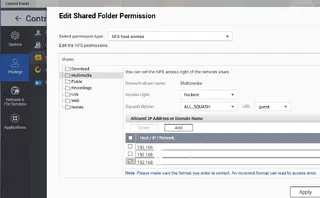
After nonstop playing around with NAS settings and google, I FINALLY figured out why the Pi wouldn't play anything from the multimedia folder and I kept getting the picture above.
Under the QNAP NFS settings, the SQUASH options drop down box was set to ALL_SQUASH and when I changed it to NO_ROOT_SQUASH everything started working again. I realized that all of my IP settings were correct in the permission section, there were no settings in the Pi I could see, so I gave this a try. I decided to check other folders and noticed this one was not like the rest for the SQUASH setting. Not sure how it ended up changed, but when I changed it, everything in the multimedia folder now works again on the Pi.
Only took me a whole week to figure it out. lol
-
If you are granting access to NAS shares only to specific IP's and the RPi moves around the DHCP scope, you could:
- Configure a static address in the RPi and then allow that address on the NAS
- Create a DHCP reservation in the router for the RPi so it is always dynamically assigned the same address
- Create credentials to access the shares and avoid the need for IP blocking
IMHO using a DHCP reservation (makes SSH access to the RPi consistent) and also using credentials and basic access controls to manage access to shares is the winning combination. From a security perspective IP blocking is a fairly blunt instrument.
I tried the 3rd option which took in router settings, but still no luck. I then decide to go back to regular default settings and no luck there either. The IP address in the Pi is the same I added to the shared folder in the NAS. Usually as soon as I add the IP address the movies start working again.
However I am getting the picture attached. Rebooted the PI, then the NAS as well, double checked I applied the settings when I added the IP address to the shared folder. Only other change is the nightlies. I wouldn't think that would be an issue, but I can try and downgrade to a previous version to see.
I also know the files are still available because I checked the multimedia folder in the NAS and everything is still there. So I have no idea why the PI is suddenly not seeing the folder. Especially since I added the IP address to the shared folder.

-
Great thanks, I will have a look at this to see if I can figure it out.
-
So I have a QNAP NAS, and for some reason I have noticed recently that on occasion my Pi keep changing IP addresses. And when it does, I have to take that new IP address and add it into my NAS settings for it to see the multimedia. Is there something I should be changing on the PI to prevent this from happening, or is this something I need to fix in my EERO router? Granted I haven't changed any router or PI settings, but it appears to happen more frequently than before.
-
It works on Chrome on the laptop, so it has to be something related to iOS Beta 26. Nothing has changed except that on the iPhone as I was going to the nightly build page daily. Why the nightly build page crashes, I have no idea, because the forum works fine. Regardless if it's WiFi or 5G, the nightly build site does not work on any phone web browser. I have tried 4 of them. But again, why an OS update would cause this for all web browsers, no idea.